
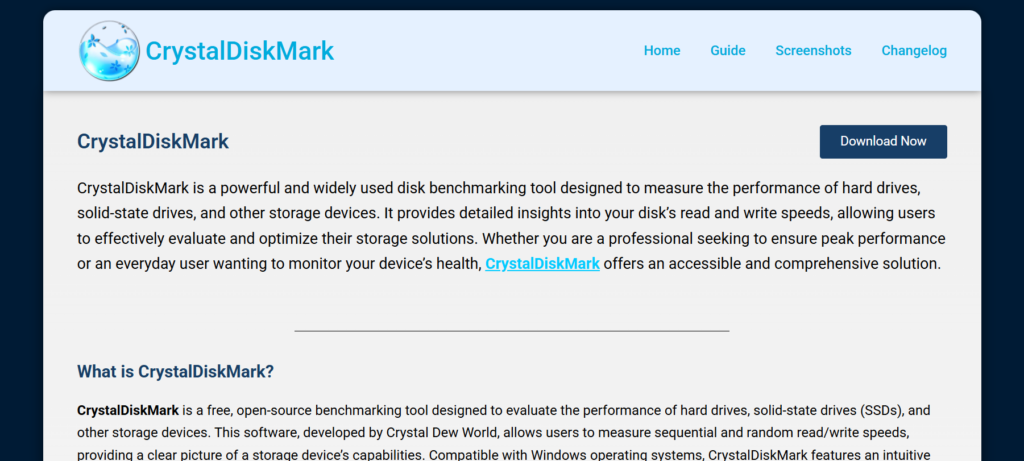
CrystalDiskMark is one of the most popular disk benchmarking tools for Windows users who want to test the speed and performance of their SSDs, HDDs, and external drives. It is lightweight, easy to use, and provides accurate read and write speed results within minutes. Whether you are upgrading your storage device, checking SSD health, or monitoring system performance, installing CrystalDiskMark on Windows 10 is a simple process that requires only a few steps. This guide explains everything you need to know about downloading, installing, and setting up CrystalDiskMark properly on your Windows 10 computer.
Downloading CrystalDiskMark on Windows 10
Finding the Official CrystalDiskMark Website
The first step is visiting the official CrystalDiskMark website to download the software safely. Using the official source helps you avoid fake installers, malware, or modified files that may harm your computer. Search for CrystalDiskMark using a trusted search engine and open the official site. Once there, you will find the latest version available for Windows 10 users along with installation options and release notes.
Choosing the Correct Version for Your System
CrystalDiskMark offers different download versions, including installer editions and portable versions. The installer version is best for most users because it automatically sets up the software on your system. The portable version works without installation and is useful for advanced users who want to run the tool from a USB drive. Make sure to select the correct version compatible with your Windows 10 operating system.
Starting the Download Process
After selecting your preferred version, click the download button to begin downloading the installation file. Depending on your internet connection, the process usually takes only a few seconds. Save the file in an easily accessible location such as the Downloads folder or desktop. Before opening the installer, it is recommended to verify that the file has downloaded completely without interruptions.
Installing CrystalDiskMark on Windows 10
Running the Installer File
Locate the downloaded setup file and double-click it to start the installation process. Windows 10 may display a security warning asking for permission to run the installer. Click “Yes” to continue. The installation wizard will open and guide you through the setup process. Carefully read the instructions provided during installation to ensure the software is installed correctly.
Selecting Installation Preferences
During installation, CrystalDiskMark allows users to choose the installation directory and additional options. Most users can keep the default settings because they are optimized for normal usage. You may also see options to create desktop shortcuts or start menu entries for easier access. Selecting these options can make launching the software more convenient in the future.
Completing the Installation Successfully
Once all settings are selected, click the install button to begin copying files to your system. The process usually finishes within a minute because CrystalDiskMark is a lightweight application. After installation is complete, click the finish button to close the setup wizard. You can now open CrystalDiskMark directly from the desktop shortcut or Windows start menu.
Setting Up and Using CrystalDiskMark
Launching CrystalDiskMark for the First Time
When you open CrystalDiskMark for the first time, the interface appears simple and beginner-friendly. The software automatically detects available storage drives connected to your Windows 10 computer. You can choose the drive you want to test from the dropdown menu. The clean layout makes it easy for both beginners and professionals to navigate the tool without confusion.
Configuring Basic Benchmark Settings
Before running a disk speed test, you can adjust several settings including test size, number of runs, and drive selection. Default settings are usually enough for standard benchmarking, but advanced users may customize them for more accurate performance analysis. Larger test sizes may provide more detailed results, although the test can take longer to complete.
Running the Disk Speed Test
To start benchmarking your drive, click the “All” button in CrystalDiskMark. The software will begin measuring sequential and random read and write speeds. During the test, avoid running heavy programs to ensure accurate results. Once completed, the results will display on the screen, showing your drive’s overall performance and helping you evaluate storage speed effectively.
FAQs
What is CrystalDiskMark used for?
CrystalDiskMark is used to measure the read and write speed of SSDs, HDDs, USB drives, and other storage devices.
Is CrystalDiskMark free for Windows 10?
Yes, CrystalDiskMark is completely free to download and use on Windows 10 computers.
Can CrystalDiskMark damage my SSD?
No, CrystalDiskMark is safe to use and does not damage SSDs during normal benchmarking.
Does CrystalDiskMark work on Windows 11?
Yes, CrystalDiskMark supports both Windows 10 and Windows 11 operating systems.
How long does a CrystalDiskMark test take?
Most disk benchmark tests finish within a few minutes depending on the selected settings and drive speed.
Conclusion
Installing CrystalDiskMark on Windows 10 is a quick and straightforward process that helps users measure storage performance with accuracy and ease. From downloading the correct version to configuring benchmark settings and running disk speed tests, the software provides a reliable solution for checking SSD and HDD performance. Whether you are a casual user or a professional, CrystalDiskMark remains one of the best free tools for monitoring and evaluating disk speed on Windows systems.
